
How to Make Animated Bible Story Videos with AI (2026)
A Bible story video from your own passage or retelling: the Bible Video template draws five scenes, narrates them, adds music and captions, and keeps to the passage you give it. How to write the brief, pick a style for children or adults, check the result, go fully animated, and what each costs.


To make an animated Bible story video with AI, paste the passage or your own retelling into Treza's Bible Video template, choose the audience and a visual style, and run it. It writes a short narration that keeps to your passage, draws five scenes, and adds a narrator, music and captions: about a minute of vertical video for $0.78.
That is the template behind the AI Bible video generator. This guide covers how to write the brief so the story stays faithful, which style suits a Sunday school class or a Shorts channel, what to check before you share it, and how to go fully animated when still scenes are not enough.
What one run makes
The Bible Video template is a narrated storyboard. One run gives you:
- A narration of about 45 to 60 seconds, written from your passage in the language you wrote it in.
- Five illustrated scenes, each a vertical 9:16 picture with a slow camera drift, so the story moves from beginning to turning point to ending.
- A narrator voice, a music bed under it, and captions burned in and timed to every spoken line, so it reads on a phone with the sound off.
The writer behind it has rules of its own for Bible stories: keep the supplied passage, the named characters and the central lesson; never invent scripture references, events or dialogue; use paraphrase unless you paste the exact wording; and keep the imagery gentle and non-graphic when the audience is children. Biblical figures are drawn as artistic interpretations in the setting of the passage.
Step 1: Choose the passage and write the brief
Open the template from the Bible video page or from chat. You can start from one of three ready ideas (the Good Samaritan, Psalm 23, or David and Goliath), or write your own. The brief is the only thing the video is made from, so give it what a teacher would want on the page:
- The reference. Book, chapter and verses, such as Luke 15:11-32.
- What happens. Two to five sentences in your own words: the beginning, the turning point, the ending.
- The point. One line on the lesson you want the viewer to keep.
- Quotation or retelling. Paste the exact verse text, with its translation, if you want it quoted. Otherwise say "in my own words" and the narration paraphrases.
A brief you can copy and change:
Retell the Prodigal Son from Luke 15:11-32 in my own words. A younger son takes his share of the inheritance, spends it far from home, and ends up feeding pigs. He comes home ready to work as a servant, and his father runs to meet him and throws a feast. Focus on the father's welcome and forgiveness. Do not quote scripture directly.
And one for a short reflection rather than a story:
A gentle reflection on Matthew 6:26-27. Show birds in an open field at morning and a quiet valley of wildflowers. Explain in my own words that God cares for us and worry adds nothing to our lives. Keep it calm and short.
If the passage is long, the writer tells it in condensed form so it still has a beginning, a turning point and an ending. For a story that needs more than a minute, split it into parts and run one part at a time, with the same style each time.
Step 2: Pick the audience and the look
The checkout asks two more things.
Audience has three choices: General audience, Children / Sunday school, and Personal devotional. Children / Sunday school tells the writer to keep the pictures gentle and the conflict non-graphic, which matters for stories like David and Goliath or Daniel in the lions' den.
Visual style has two: Realistic / cinematic, with natural light and historically inspired settings, and Cartoon / storybook, with warm, gentle illustrations. For a class of young children the storybook look is the usual pick; for a devotional channel or an adult study group, cinematic tends to suit.
These two choices are production instructions. The narrator never reads them out.
Step 3: Check the price, run it, and watch it through
The review screen shows your choices and the price before anything runs. Bible Video is listed at $0.78 a run. The narrator and the music only start once the scenes are drawn, so a run where no scene could be drawn does not bill you for a voice and a music track with nothing under them.
When it finishes, watch it once with the passage open beside you. Check four things:
- Names and places. Are they spelled and pronounced the way your church says them? Listen, do not just read the captions.
- The facts of the story. Nothing added, nothing out of order. The writer is told not to invent, but you are the one who knows the passage.
- Quotation against paraphrase. If you asked for your own words, nothing should be presented as a direct quotation.
- The pictures. AI pictures are interpretations. Look for anything that does not fit your tradition's depiction preferences, and for stray detail in the background.
If a line or a scene is wrong, say what to change in chat and run it again, or adjust the cut in the timeline editor. Then download it for your channel, your lesson or your group.
Going fully animated
The template makes still pictures that move with the camera, which is enough for a lot of story and devotional videos and keeps the price low. When you want the characters themselves to move, ask for it in chat: for example, "Make the five scenes of this Bible story as animated clips with Veo 3.1 Lite, 9:16, no dialogue, then add the narration and captions." Chat shows the price before anything renders, because video generation is priced by the model and the second, separately from the template.
These two scenes were made on Treza that way:
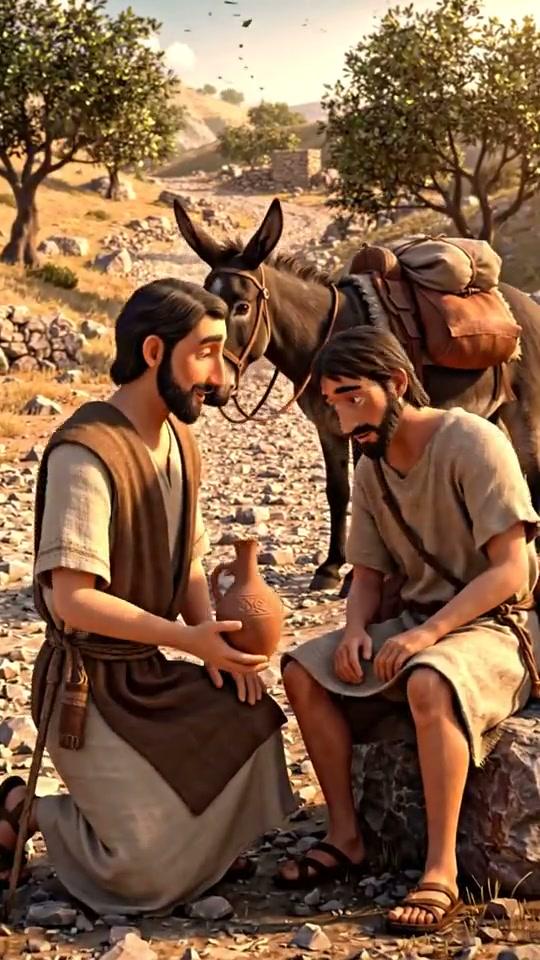
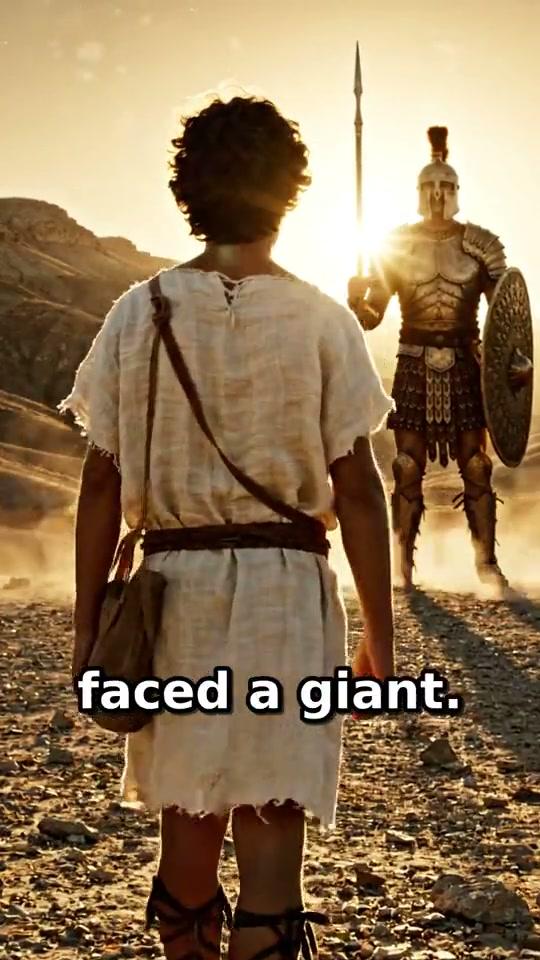
Veo 3.1 Lite is the lowest priced model in the Veo family: it takes a prompt or a starting image and returns 4, 6 or 8 second clips in landscape or vertical. Its listed rate is $0.05 a second at 720p with sound and less without it, so a five-scene story at eight seconds a scene costs a few dollars rather than cents. For a children's series, the AI kids story video generator covers the general version of this, and keeping a character the same from one scene to the next has its own guide: how to keep the same character across scenes.
What goes wrong, and how to fix it
The narration drifts from the passage. The brief was too thin, so the writer had to fill gaps. Add the turning point and the ending in your own words, and say "Do not add events that are not in the passage."
A name is mispronounced. The voice reads the spelling it sees. Spell the name the way it should sound in your brief (for example "Ne-he-MY-ah") and run it again.
A scene is too intense for children. Choose Children / Sunday school and say what to keep off screen: "Show Goliath falling from a distance, no injury."
The story feels rushed. One minute holds one story with three beats. A longer passage, like the life of Joseph, works better as several videos, each with its own beginning and ending.
The look changes between episodes. Keep the same style choice and describe the main character the same way, word for word, in every brief.
What it costs
| Price | |
|---|---|
| Bible Video template, about a minute, five illustrated scenes, narration, music, captions | $0.78 a run |
| Fully animated scenes with Veo 3.1 Lite | listed at $0.05 a second at 720p with sound, shown before it runs |
| Credit packs | from $5, no subscription |
Every price is shown on the review screen before the run starts, and a failed generation costs nothing. You can start your first story on the AI Bible video generator, or explore the other kinds of video Treza makes on the AI video generator page and in the AI video pipeline behind it.
Frequently Asked Questions
What is the best AI tool to make animated Bible stories for kids?
Treza's Bible Video template is made for it: paste the passage, choose Children / Sunday school and the cartoon storybook style, and one run gives you five gentle illustrated scenes with a narrator, music and captions for $0.78. For fully animated scenes, ask chat for video clips at a separate, listed price.
Will the AI change the Bible story?
The writer is told to keep your passage, characters and lesson, and never to invent references, events or dialogue. It still works from what you give it, so a detailed brief keeps it closer. Watch every video with the passage open before you share it.
Can it quote scripture word for word?
Yes, when you paste the exact verse text and name the translation. Without it the narration is a paraphrase, and it is told not to present its own words as a quotation.
Can I make Bible videos in another language?
Yes. Write the passage or retelling in the language you want spoken and the narration stays in that language. Listen to the names before publishing, since pronunciation varies between languages.
How long is a Bible story video?
One run of the template is about a minute, five scenes. For longer stories, make several parts with the same style and join them in the timeline editor.
Are these videos good for YouTube Shorts and Reels?
Yes. They come out vertical, 9:16, with captions burned in, which is the format Shorts, Reels and TikTok expect.