

AI image to video generator
Animate a still image into video, from the frame you chose
Upload a photo or generate a key image, then hand it to Veo 3.1, Seedance 2.5, Kling 3.0, or Wan 2.7 as the first frame. You approve the picture for cents before the video model renders from it.
Everything on this page was made on Treza.
First frame, your call
The video starts from the exact image you supply. Upload a product shot or a poster, or generate one with an image model on the canvas, and the video model animates forward from that frame instead of imagining its own.
Preview before you pay for motion
An image render costs cents; a video render costs around $1.06. Run the image node on its own, fix the composition while it is cheap, then commit the frame to the video node.
Last frame on the models that support it
Pin an end frame as well as a start frame and the model interpolates the motion between them. Only offered on models that accept a last-frame keyframe, so the option appears when it will actually be honored.
Reference images for consistency
Several models accept reference images alongside the prompt, so a recurring character, product, or style stays recognizable across every shot in a series rather than drifting from clip to clip.
Pick the model per shot
Seedance 2.5 for exact 4 to 30 second clips in six aspect ratios, Veo 3.1 for photoreal quality, Kling and Wan for fast vertical work. The model is one node setting, so the same image can be animated by any of them.
Then finish the video
Animated shots feed a Sequence node that stitches up to 12 of them with narration, and captions and publishing follow in the same run. Image to video is a step in a pipeline, not a dead end.
Stills, put in motion
Wire an image into a video node and the still becomes the first frame. Product shots, characters, and art direction all survive the move.

A product shot, moving
The pack stays the pack while the camera goes around it.
Veo 3.1 Fast

A look, walking
The garment holds its shape across the shot.
Veo 3.1 Fast

A character, performing
A filmed move driving a generated one.
Motion Transfer
From idea to finished video
- Step 01
Bring the image
Upload a photo onto a File node, or write a prompt for an image model and let the canvas generate the key frame.
- Step 02
Approve the frame
Look at the still. If the framing, lighting, or subject is off, fix the prompt and re-render the image. Nothing expensive has happened yet.
- Step 03
Animate it
Wire the image into a video node as the first frame, describe the motion you want, pick the model, duration, and aspect ratio, and run.
- Step 04
Use the clip
Sequence it with other shots, add narration and captions, publish to YouTube or TikTok, or expose the whole pipeline as an API.
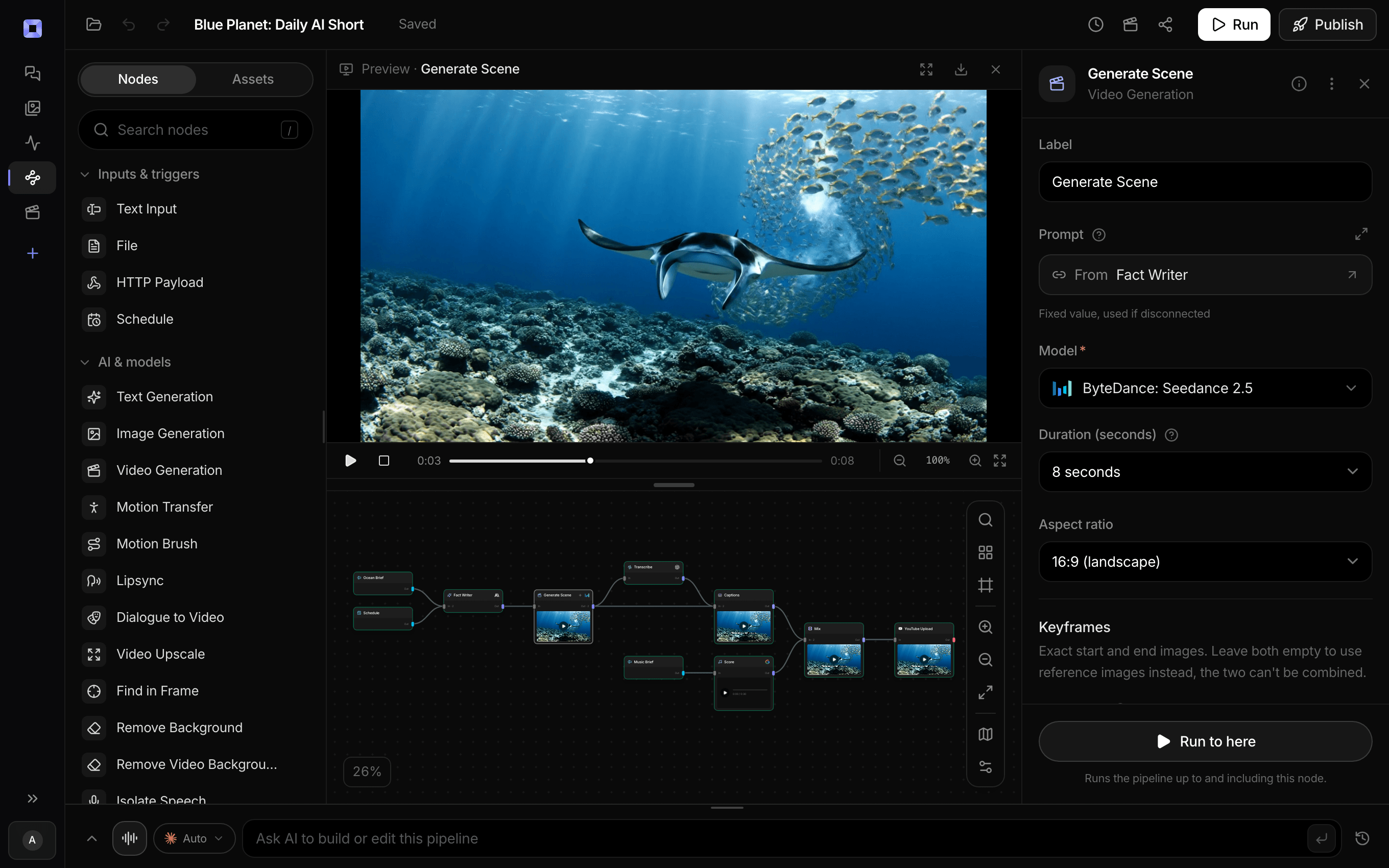
Ask for the pipeline in the composer, or send it from Claude over MCP.
What people build with it
Product photos that move
Start from the packshot you already have and get a slow push-in, a rotation, or a reveal, with the product looking like your product.
Posters and key art into teasers
A campaign still becomes a six-second motion piece for the feed. The Poster to Motion template does exactly this out of the box.
Consistent characters across a series
Generate the character once, approve it, and reuse that frame or reference on every episode so the audience recognizes them.
Storyboards you can watch
Render each board as a still, approve the sequence cheaply, then animate the boards you keep. Direction happens on images, spend happens on video.
Illustrations and archival photos
Historical stills, illustrations, and album art gain subtle motion for documentary-style shorts without inventing new imagery.
Batch through an API
Publish the pipeline as an endpoint, send an image URL and a motion prompt, get a video URL back. Your product does image to video without touching a model API directly.

AI image to video generator, answered
How do I turn an image into a video with AI on Treza?
Add your image to the canvas, either by uploading it or generating it with an image model, wire it into a video generation node as the first frame, describe the motion, choose a model, and run. Open the Poster to Motion template to see the two-node version already wired.
Which models support image to video?
First-frame input is supported across the main video models on Treza, including Veo 3.1, Seedance 2.5, Kling 3.0, Wan 2.7, and others in the model library. Last-frame keyframes and multi-image references are offered only on the models that accept them, and the node shows those options when the selected model does.
Why preview the first frame separately?
Cost. An image render is a few cents and finishes in seconds; a video render is roughly $1.06 and takes minutes. Approving the frame first means most of your iteration happens on the cheap step, and the video model only runs on a composition you already like.
Can I keep the same character or product across many videos?
Yes. Reuse the approved image as the first frame of every shot, or pass it as a reference image on models that accept references. Both keep identity far more stable than describing the character in text each time.
Can the image be a photo of a real person?
Some providers reject reference images or first frames containing recognizable real people, which is a provider policy rather than a Treza limit. Objects, products, characters, and scenes work reliably.
How long can the generated video be?
It depends on the model. Seedance 2.5 renders any exact duration from 4 to 30 seconds; Veo 3.1 renders 4, 6, or 8 second clips. For longer videos, animate several stills and stitch them in a Sequence node with narration over the top.
How much does it cost to make ai image to video generator with Treza?
Treza runs on prepaid credits with no subscription. Each generation is charged at the model's own rate from your balance, and a failed generation costs nothing. A typical video generation settles around $1.06, and credit packs start at $5 and never expire.
Can I call this as an API instead of using the canvas?
Yes. Every pipeline can be published as a versioned HTTP endpoint. Call the typed /invoke endpoint with JSON in and JSON out, or point any OpenAI SDK at the OpenAI-compatible endpoint. Swap a model on a node later and the API your product calls does not change.
Do I need to know how to edit video?
No. Start from a template, change the topic, and run it. If you do want frame-level control, the timeline editor is there with multi-track video and audio, per-clip trims, fades, and volume, but nothing about the automated path requires opening it.
Related tools
AI video generator
The full video pipeline, from prompt to published
AI product video generator
Product demos and ecommerce video, one pipeline per catalog
AI shorts generator
Vertical short-form video for TikTok, Reels, and Shorts
See every tool, compare the models, read what an AI video pipeline is, or earn 30% sharing these tools.
Your first video is one prompt away.
Generate your first video, image, or draft today. Prepaid credits, no subscription.