How to Keep the Same Character Across Scenes with AI (2026)
AI video models redraw a character from scratch in every scene, so the hero changes between shots. This guide shows the method that holds one character steady across scenes and separate videos: draw a character sheet once, reuse its front view as the reference in every scene, and fall back to an opening frame on models that take no references. With prompts to copy, what still drifts, and what it costs.

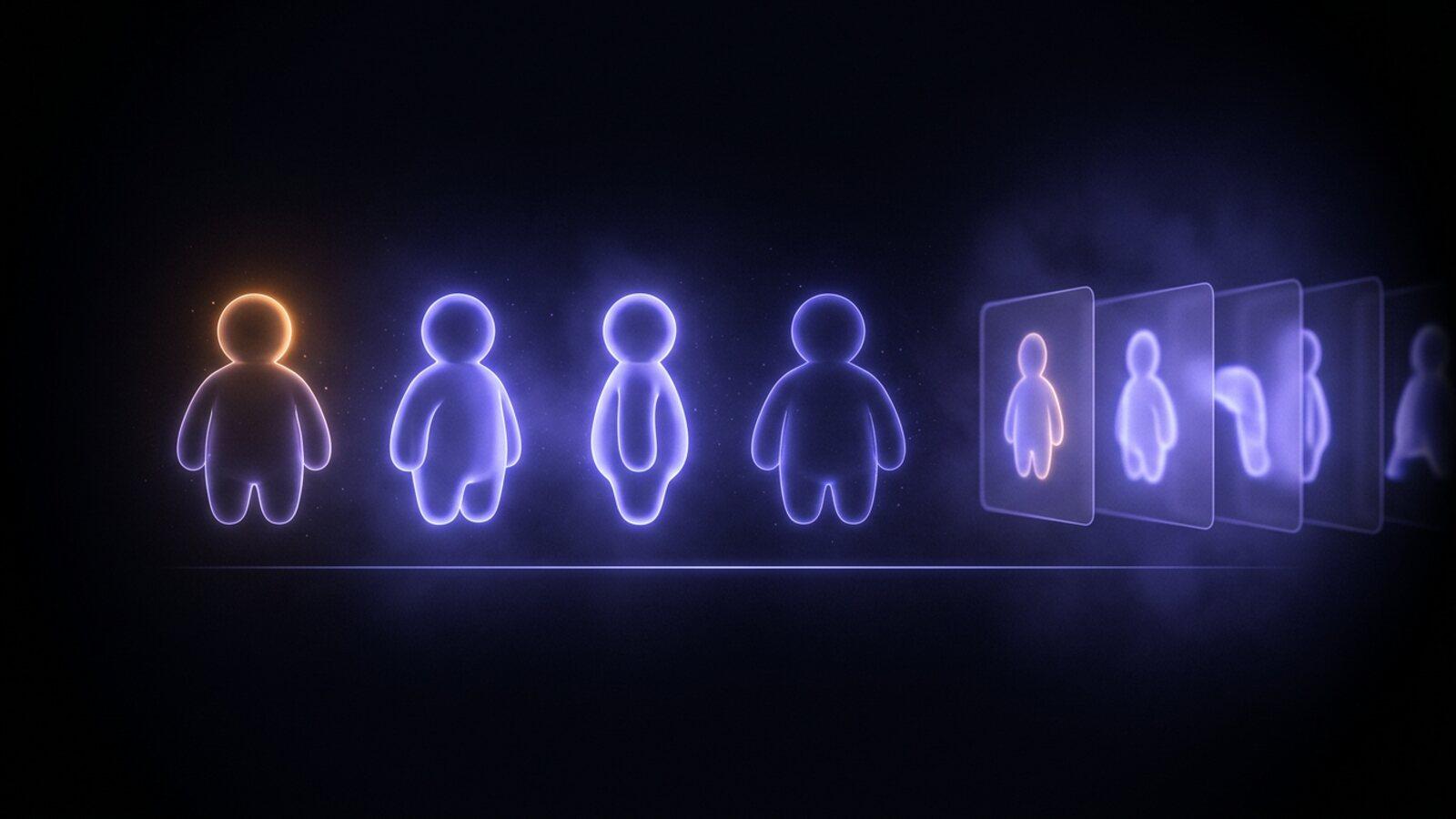
To keep the same character across scenes with AI, draw the character once and make every scene from that picture instead of a description. In Treza, ask chat for a character sheet: it draws the character from four angles, then passes the front view into each scene as the reference image, so the model copies a picture rather than guessing again.
If you are making a weekly series with the same cast, the AI cartoon series maker does all of this for you, episode after episode.
Why your character changes from one scene to the next
A video model has no memory between renders. Every scene starts from the words you send it, and "a small grey cat in a red scarf" fits thousands of cats, so the model picks a new one each time. A longer description only adds details to drift. What fixes it is a picture to copy, the same picture every time.
Step 1: Draw the character sheet
A character sheet is one picture of your character drawn four times side by side: front, three-quarter, side and back, full body, on a plain background. Treza draws all four views in a single image, because views drawn together share one face, one outfit and one set of proportions, then cuts the sheet into four separate pictures you can use one at a time.
Ask for it in chat in plain words. Prompts to copy, with your own character in place of ours:
Make a character sheet of Miso, a small round grey cat with a red knitted scarf, big amber eyes and a white tip on her tail. Soft 3D cartoon look.
Character sheet for a tall, cheerful robot gardener with a rusty orange body, one round blue eye and a watering can for a hand. Flat 2D animation style.
Make a character sheet of the character in this drawing. Keep my art style.
The third one is for a character you already drew. Attach the drawing and the sheet keeps its look: the style of your picture is put into words before anything is drawn, so a pencil sketch stays a sketch and a cartoon stays a cartoon.
Look at the sheet before you go on. Every scene will copy it, so check the one or two details that make your character yours (the scarf, the tail tip, the blue eye). If one is missing, or a story prop crept into the character's hands, ask for the sheet again now rather than redoing every scene later.
A few strong colours hold better than fine patterns, and the models only draw original characters: well-known ones from films and shows are declined. If the character is based on a real person, it should be you, with a picture you have the right to use; some video providers refuse references of recognizable real people as a matter of their own policy.
Step 2: Make each scene from the front view
With the sheet in the conversation, ask for the scenes. You do not need to repeat the description or paste links. Ask for what happens:
Scene 1: Miso wakes up on a windowsill in the morning sun and stretches. Slow push in.
Scene 2: Miso chases a falling leaf across a garden path. The camera follows at her height.
Scene 3: Miso curls up by a fireplace as it starts to snow outside. Static wide shot.
For each scene, chat passes the sheet's front view to the video model as a reference image and describes the character in the sheet's own words, so the three clips show the same cat.
Ask for all three in one message: several clips are priced together as one job before any of them starts.
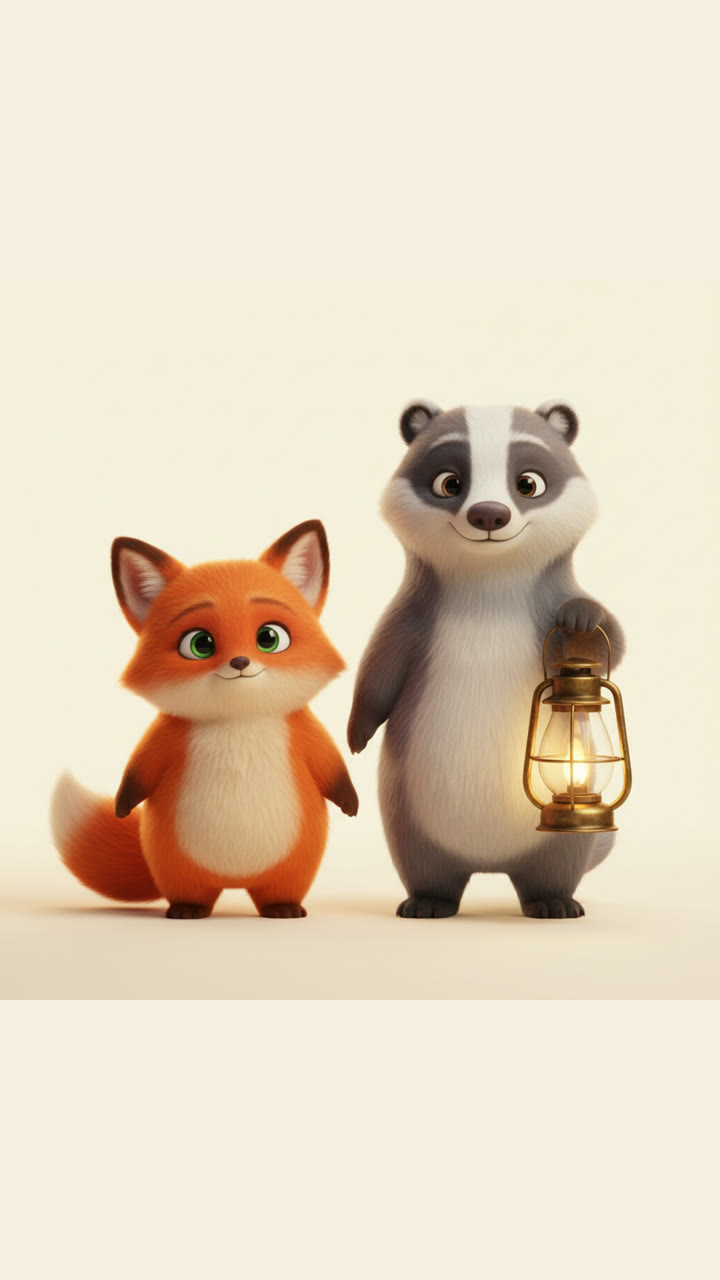
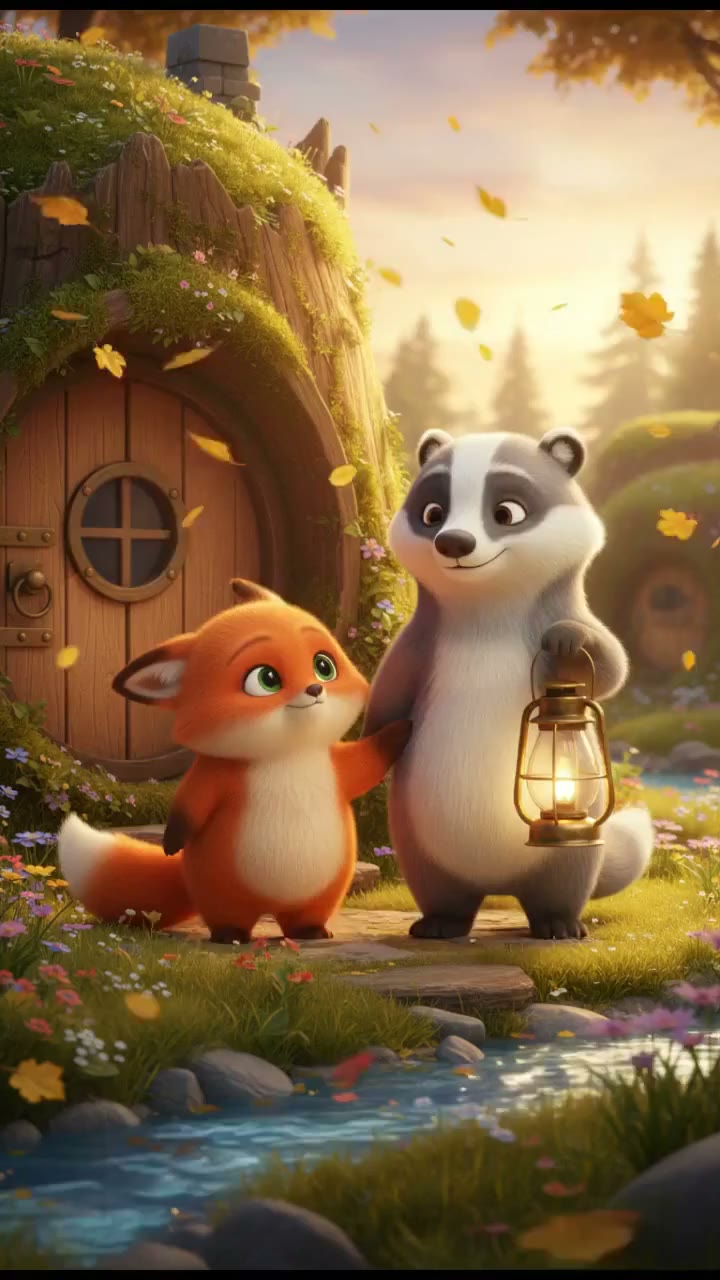
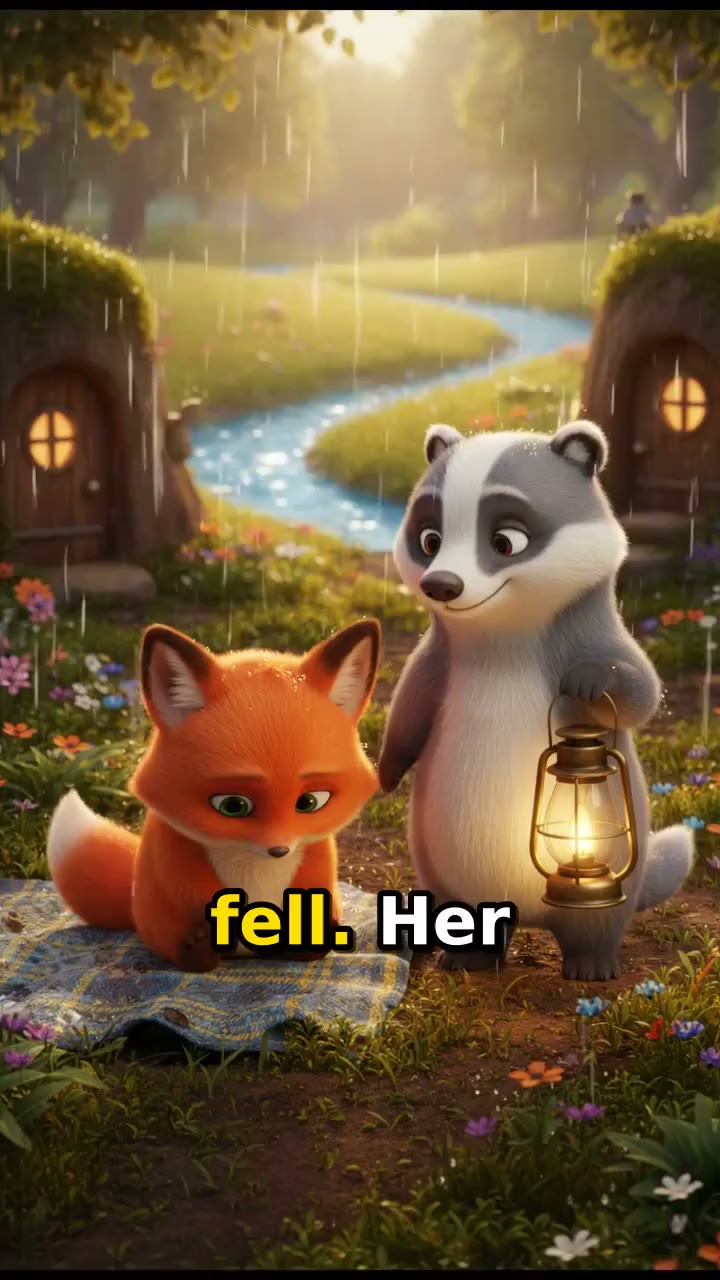
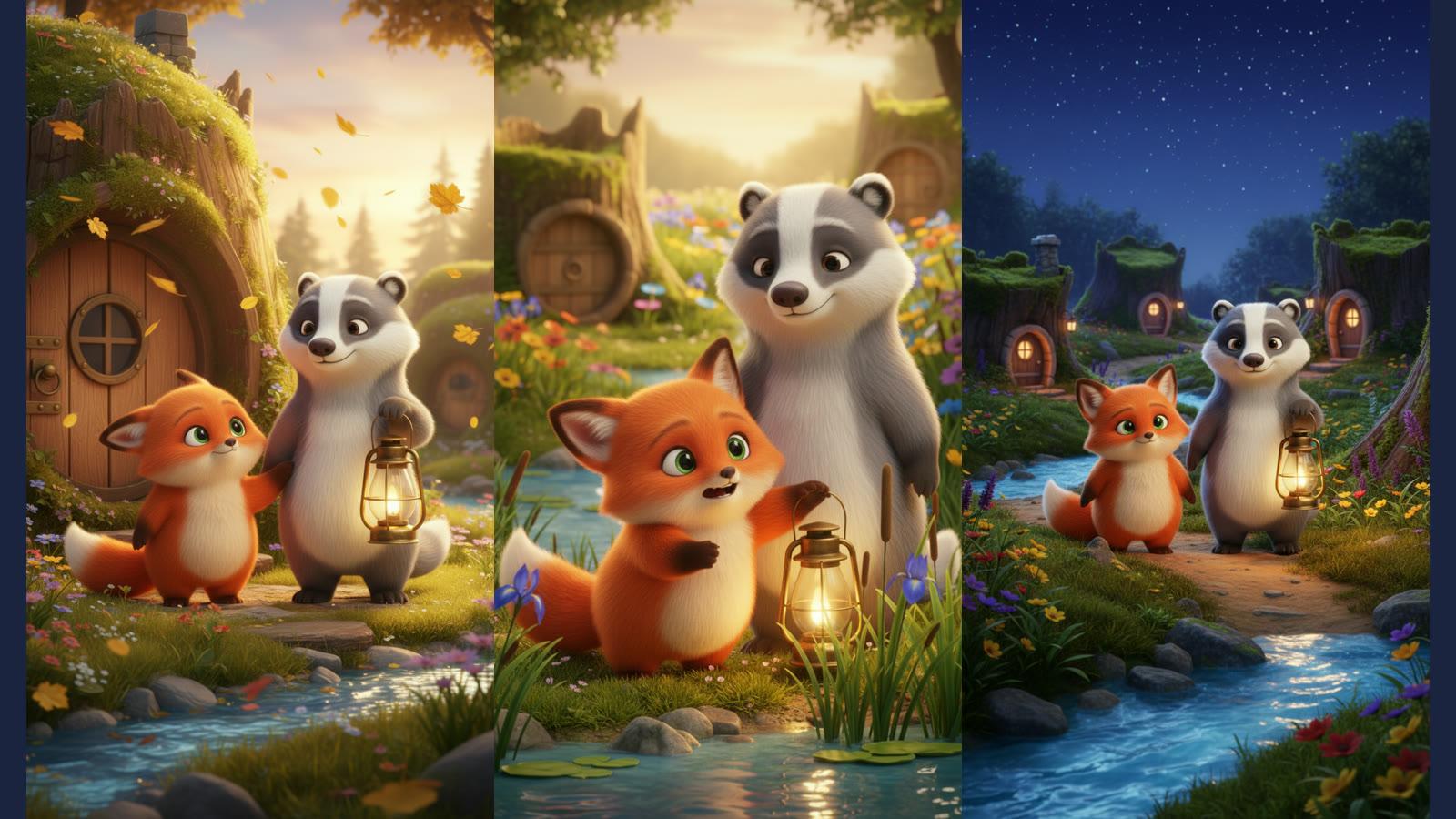
The example above comes from the Animated Series template, which works the same way: one sheet, every scene drawn from it, and the fox and the badger look the same in both episodes. The lantern is a story prop that got onto the sheet and then turned up where it was not wanted, exactly what to catch in step 1.
Two characters in one scene
Draw one sheet per recurring character, one at a time. When a scene has both, both front views go in as references:
Scene 4: Miso meets the robot gardener by the tomato plants. He waters the plants and she bats at the drops.
Step 3: When the model takes no reference image
Not every video model accepts reference images. On Treza, Seedance 2.5, Seedance 2.0, Wan 2.7 and Gemini Omni take them; others, including Veo 3.1, only take an opening frame (and some a closing frame).
For those models the method changes by one step. First an image is made with the sheet as its reference: the character, in the scene's setting and pose. Then that image is animated as the clip's first frame. Chat does this for you when the model you picked cannot read references, and you can ask for it directly:
Make the opening frame of scene 2 from Miso's sheet first, then animate it with Veo 3.1.
Never use the sheet itself as the first frame, or the clip opens on four cats standing in a row. The opening frame is the character already in the scene's place.
The image step is also the cheap place to direct: an image renders in seconds for a few cents, a video takes minutes.
Step 4: Continue a scene instead of starting a new one
When the next shot follows straight on from the last one, do not start it fresh. Say "keep going" or "what happens next" and chat continues from the clip: its last frame becomes the exact first frame of the new one, with the same character, place and light.
Keep going: Miso jumps down from the windowsill and walks toward the kitchen.
Use a new scene from the sheet when the place or time changes. When the clips are in, ask chat to join them into one video.
Step 5: The same character in a different video
The sheet is just a picture, so it works in any later chat. It is saved with everything else you made, under Assets in chat. Open a new chat, attach the sheet's front view, and say what it is:
This is Miso's character sheet. Use it as the reference for every scene and do not draw a new one. Scene 1: Miso finds a paper boat on a puddle.
Saying "do not draw a new one" matters: a fresh sheet is a fresh drawing, and drift starts again.
On the canvas the same idea is two nodes: the sheet wired into an Image Generation node as a reference (Nano Banana Pro takes up to 10), and the result wired into a Video Generation node as the first frame.
What still drifts, and how to fix it
A reference image is not a trained character. It holds the big things (shape, colours, face) far better than words, and small things can still wander:
- Small accessories and patterns go first. A badge, a pattern on a sleeve, a ring. If it matters, make it big and simple on the sheet.
- Hands and held objects change between scenes. Give the character empty hands on the sheet and put props in the scene prompt.
- The back and far side are guessed more often than the front. If a scene turns away from camera, check it closely.
- Backgrounds are not part of the sheet, so a room can rearrange itself between scenes. For several scenes in one place, continue from the last clip (step 4) or start each from an opening frame of the same room.
- Fast action and crowds break consistency in every model. Walking, turning, reaching and reacting hold best.
When one scene wanders, rerun that scene alone. The rest stay as they are.
What it costs
You pay per render, and every render is priced before it starts:
- The character sheet is one image on Nano Banana Pro. Cutting it into four views costs nothing extra.
- An opening frame (step 3) is one more image, a few cents.
- Each scene is one video render, priced by the model and the length. A 4 second 720p clip on Veo 3.1 Lite is about $0.28.
- A talking scene from the Character Skit starter, 8 seconds with dialogue, is about $0.56.
A failed render costs nothing, and there is no subscription.
When to use the series template instead
This guide is for scenes you direct one at a time, or separate videos made weeks apart. For narrated episodes with the same cast, the Animated Series template does the sheet, eight scenes, narrator, music and captions in one run. How to make an animated YouTube series with AI walks through it with two real episodes.
To start either way, open the AI cartoon series maker for episodes, or the AI video generator for single scenes, and draw your character's sheet first.
Frequently Asked Questions
How do I keep the same character in every AI video scene?
Draw the character once as a character sheet and make every scene from that picture. In Treza chat, ask for a character sheet, then ask for your scenes; each one gets the sheet's front view as its reference image, so the model copies the character instead of reinventing it from a description.
Which AI video models support reference images for characters?
On Treza, Seedance 2.5, Seedance 2.0, Wan 2.7 and Gemini Omni accept reference images. Models that do not, such as Veo 3.1, take an opening frame instead: make an image of the character in the scene from the sheet first, then animate it.
Can I use the same character in a new video weeks later?
Yes. The sheet is saved with your other work under Assets in chat. Attach its front view in a new chat, say it is the character sheet and that no new one should be drawn, and describe the new scene.
Can I make a character sheet from my own drawing?
Yes. Attach the drawing and ask for a character sheet of it. The sheet keeps your picture's art style and draws the character from the front, three-quarter, side and back.
Is this the same as training a custom character model?
No. Nothing is trained and nothing about the model changes. The sheet is a picture handed to each render as a reference, which is why it works on many models and why small details can still drift. Rerun any scene that wanders.