How to Turn a Shopify Product Photo Into a Video
Your Shopify product page already holds the best starting point for a product video: your own photos. This guide shows how to paste a product link into Treza, pick the photo the clip opens on, write the motion, check the result, add your logo afterwards, and make a clip for every new product.

To turn a Shopify product photo into a video, paste the product page link into Treza's Shopify product video page, pick the photo, and edit the prompt to describe the motion. The price shows on the button before anything is made, and you get a 4-second clip that opens on your own photo, vertical for Reels or wide for the product page.
No app to install and no store login. The Shopify page covers both jobs, videos and new product photos; this guide is the video half, step by step. Treza is an independent company and is not affiliated with or endorsed by Shopify.
Why start from the product page
Your store already has the hardest part of a product video: accurate photos of what you sell, in the right colour, with the right label. A video model asked to imagine your product will draw something close. A video model given your photo as the first frame starts on the real thing and animates forward from it.
That is the whole idea behind the Shopify flow. Every Shopify storefront publishes each product's title and photos on the same public page your customers see, so Treza can read them from a pasted link. You choose which photo the clip opens on, and that photo is frame one.
Only frame one is your photo, though. Every frame after it is generated, so the rest of this guide is about choosing a photo and a motion that leave the model little to invent. The product commercial guide goes deeper on what holds and what drifts; here is the short version as it applies to one 4-second clip.
The steps
1. Paste a product link. Copy the address of any product page in your store, from the storefront, and paste it on the product video page. Treza reads the product and shows its photos. A store behind a password, or one that has switched off its public product data, cannot be read this way; the page tells you so.
2. Pick the photo. Choose the one the video should open on. The best starting photo is a clear, well-lit shot of the whole product with some space around it. A tight crop leaves the model nowhere to move the camera without inventing the edges.
3. Edit the prompt. The checkout opens in chat with your photo in place and a starting prompt:
The product in the photo turns slowly on a clean studio set, soft key light, a gentle camera push in, premium ad look. Keep the product, its label and its colors exactly as they are.
Change the motion and keep the last sentence. A few to copy, with your product in the brackets:
Slow push in toward the [product] on a stone surface, soft morning light moving across it from the left. Keep the product, its label and its colors exactly as they are.
The [product] stands still while fine mist drifts past it, the camera slides gently to the right. Keep the product, its label and its colors exactly as they are.
Light ripples of water spread across the surface around the [product], the product itself does not move, close studio shot. Keep the product, its label and its colors exactly as they are.
4. Pick the shape and check the price. Vertical 9:16 for TikTok, Reels and Shorts, or wide 16:9 for the product page and YouTube. The price is on the button: as of November 2026 the clip runs on Veo 3.1 Lite, 4 seconds with sound, at $0.28. Pressing the button is the yes.
5. Download it. The clip arrives in chat. Download it for the product page, an ad set, an email or a post.
What the result looks like
This is a real run: an unbranded candle jar, one photo, and the clip the Product video checkout made from it.
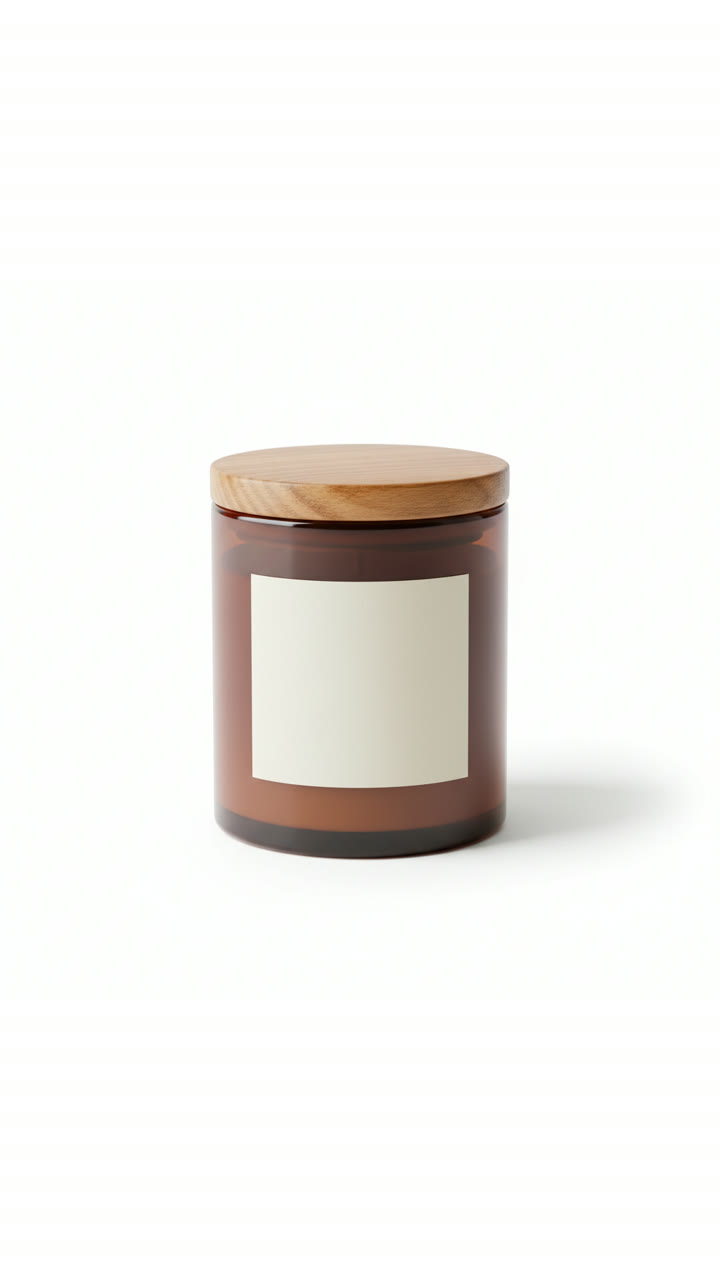
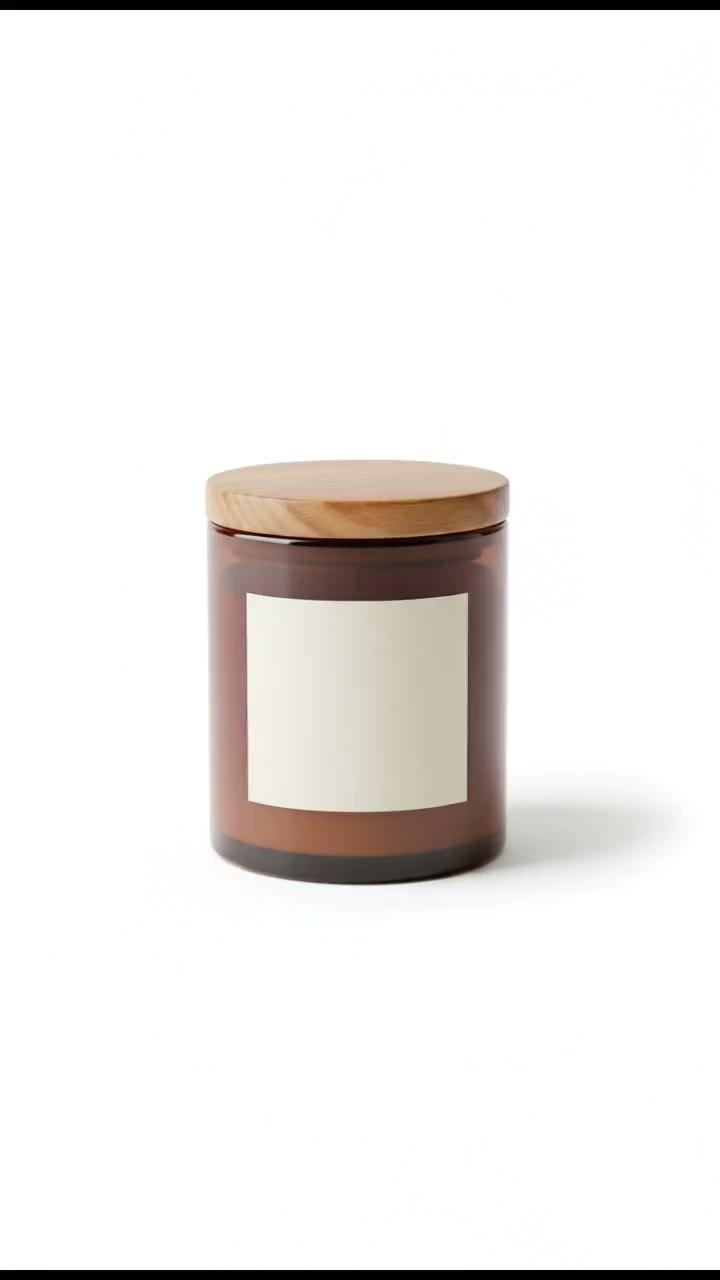
The jar, the wooden lid and the amber glass hold through the turn. The label stays where it was on the jar, and stays blank, because the photo was blank. As the jar turns, the label moves out of view and the back of the jar appears, which the photo never showed. Plain glass is a fair guess for a candle jar; for a product with a different back, a full turn is the wrong motion.
Keep it slow and check the label
The motions that keep a product looking like itself are small ones: a slow push in, a gentle slide past it, light moving across it, something moving around it while it stays still. The ones that make the model guess are a full spin, hands opening it, and close-ups on fine print.
Before you use a clip, watch it at full size and check three things:
- The label. Small text softens or changes into shapes that look like letters. If the label copy matters, keep the camera back and avoid a turn that brings it close.
- The shape at the last frame. Compare the final second with your photo. If the cap, the handle or the proportions have shifted, shorten the move or keep the product still and move the light instead.
- New details. Extra buttons, a second logo, writing that was never there. Add "no new text or labels" to the prompt and run it again.
If a product has moving parts, a lid or a strap, keep it closed in the shot. The photo shows one position; every other position is invented.
Add your logo and price afterwards
Do not ask the video model to draw your logo, your price or a discount code. It will draw something close, and close is worse than nothing on an ad.
Put them on after the clip is made, as an overlay from your own file: attach your logo in chat and ask for it in a corner of the video, or ask for an end card with your logo and the offer. The Overlay step places your file exactly, on every frame, at the size and position you pick. The logo section of the product commercial guide has the detail, including how to carry prices and codes in captions or a voiceover instead of the picture.
From one clip to a full ad
A 4-second clip is a product page loop or the first shot of an ad. For a longer ad, keep going in the same chat: ask for a second shot from another photo of the product, a detail or the product in use, then join them and add a voiceover, music and captions. Longer cuts are made in chat; the checkout itself makes the one clip.
If your store has only a white-background studio shot, make a second starting picture first. The Shopify product photo page puts the product into a new scene from the same link, a kitchen counter or a desk by a window, and that picture can open the next shot. Check it against the original before you use it: if the lid is the wrong colour in the still, it will be wrong in the clip too.
A clip for every new product
For every product you add, the Shopify automation page shows how to connect your store with n8n or Zapier: a new product triggers the flow, its first photo becomes the first frame of a Treza video, a Max cost on the step caps the price of each clip, and the link goes to Slack or email for review before anything is posted.
For n8n there is a ready-made workflow to start from: download it, import it, and add your Shopify, OpenAI, Treza and Slack credentials. Review the first few clips by hand before you let it run on its own. The step returns a link to the finished file; adding the video to the product in Shopify is still a manual upload.
What it costs
You pay per clip from prepaid credits, with no subscription. As of November 2026 the Shopify product video is a 4-second Veo 3.1 Lite clip at $0.28, shown on the button before you press it. The run goes through chat, and the chat turn that starts it can add a small charge of its own, so the button price is the clip, not always the whole charge. Credit packs start at $5 and never expire. A new product picture from the photo page is priced on its own button too.
The AI product video generator is the place to go when the product is not in a Shopify store, or you want to start from a photo on your computer. For everything else Treza makes, start at the AI video generator.
Frequently Asked Questions
How do I make a video from a Shopify product photo?
Paste the product page link on Treza's Shopify product video page, pick the photo, and edit the prompt to describe the motion. The price is on the button. Treza makes a 4-second clip that opens on your photo, in vertical 9:16 or wide 16:9, and you download it from chat.
Will the video look like my real product?
The first frame is your photo, so it opens on your exact product. After that the motion is generated. Shape, colour and material hold best in slow moves; small text on the label, moving parts and the side the photo never showed are where it drifts. Watch each clip before you use it.
Do I need to install a Shopify app or give store access?
No. Treza reads the product's title and photos from the public product page, the same one your customers see. Nothing is installed and no store login is asked for.
Can I add my logo and price to the video?
Yes, from your own files, after the clip is made. Attach the logo in chat and ask for it as an overlay in a corner or on an end card; it goes on exactly as designed. Keep prices and codes out of the prompt so the model never draws them.
Can I make a video for every product automatically?
Yes, with n8n or Zapier. A new product in your store triggers the flow, its first photo becomes the first frame, and a Max cost caps each clip. There is a ready-made n8n workflow to start from on the Shopify automation page.
How long is the video?
The Shopify checkout makes one 4-second clip. For a longer ad, make more shots in the same chat, each from a photo of the product, and join them with a voiceover, music and captions.