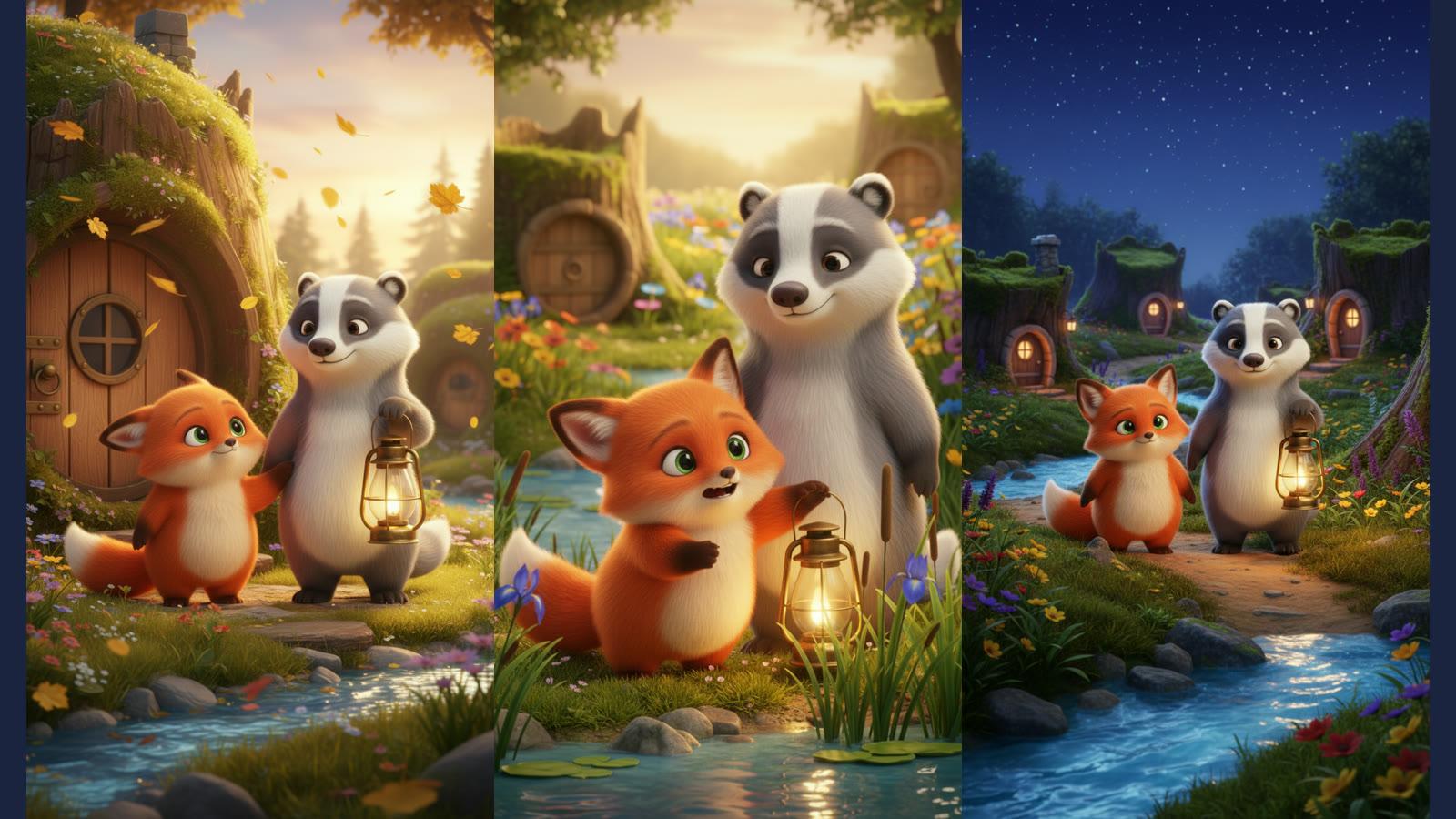
How to Make an AI Commercial for Your Product From One Photo
A product commercial made with AI only works if the product on screen is the one you sell. This guide shows how to start every shot from your own photo, which moves keep the product looking right and which make the model guess, how to split an ad into shots, and how to put your real logo, voiceover and captions on it.

To make an AI commercial from one product photo, attach the photo in Treza's chat and describe the shot: the video starts on your photo as its first frame, so it opens on the product you sell. Keep moves slow, build the ad from short shots that each start on a real picture, then add your logo, voice and captions.
The rest of this guide is the detail that decides whether the product still looks like itself at second five. The place to do it is the AI commercial generator: describe the business and the offer, attach the photo, and build up from the first shot.
Why the photo goes first
A video model asked for "a matte black water bottle with a bamboo lid" will draw a bottle, not yours. The proportions, the shade and the label are all a guess, and customers notice.
A first frame removes the guess at the start. When you attach a photo, the clip opens on that exact image and the model animates forward from it. Almost every video model in the catalog takes a first frame, and many also take a last frame, including Veo 3.1, Seedance 2.5 and Wan 3.0.
Only the first frame is your photo; every frame after it is generated. So the real work is choosing shots where the model has little to invent.
What holds and what drifts
What holds best: the overall shape, the colour, the material, and where the label or logo sits on the product. These are all in the photo, and in a slow move they barely change, so the model carries them through.
What drifts:
- Small text. An ingredients list, a model number, the fine print on a label. Video models draw lettering only approximately, so small type will soften or change into shapes that look like letters.
- Moving parts. A lid opening, a strap buckling, a pump pressing down. The photo shows one position; every other position is invented.
- The side you did not photograph. A full turn around the product asks the model to draw the back from nothing. A quarter turn asks for less. A slow push-in asks for almost nothing.
So the safe shots are a slow push-in, a gentle slide past the product, or light moving across it. The risky ones are a 360 spin, a hand taking it apart, and a close-up on the label copy.
Split the ad into shots, each on a real picture
A 15 or 30 second commercial is not one clip. A single generated shot on the default model runs 4 to 15 seconds, and one video can stitch up to 12 shots, which covers a 30 or 60 second spot.
Plan it shot by shot, and give every shot that shows the product its own starting picture:
- The hero. Your best photo, a slow push-in.
- The detail. A second photo, closer, of the part that sells it: the texture, the stitching, the pour.
- In use. A photo of the product in its setting, or a generated one (below).
- The end card. The product on a plain background, logo and offer on top.
If you only have one photo, you can still get several starting pictures from it. On the canvas, an Image Generation node takes your photo as a reference (up to 10 references per image) and places the product in a new setting: on a marble counter, on a trail, on a shelf in morning light. That still then becomes the first frame of a shot. The still is itself a redraw, so check it against the original before you spend on video: if the cap is the wrong colour in the still, it will be wrong in the clip too.
This order is also cheaper: an image costs a fraction of a video render, and most of what goes wrong is visible in a still. Previewing the first frame before you pay for the video covers the wiring, including Run to here and locking the approved still.
The steps in chat
Open chat, attach your product photo, and ask for the first shot. Prompts you can copy, with your own product in place of the brackets:
Start on this photo. Slow push-in toward the [product], soft studio light moving from left to right across it. Keep the [product] exactly as it is, no new text or labels. 5 seconds, vertical.
Start on this photo. The camera slides slowly to the right past the [product] on the [surface]. Morning light, a little steam rising behind it. Keep the shape and colour unchanged. 6 seconds, 16:9.
Start on this photo. Very slow push-in, shallow depth of field, the background drifting out of focus. The [product] stays still and centred. 4 seconds, square.
Three habits that help:
- Say what must not change. "Keep the label where it is" and "no new text" do more than another adjective about the lighting.
- Ask for one move. A push-in and a pan and a turn in five seconds is three invitations to drift.
- Look at the first shot before you plan the rest. It renders in a few minutes; if the product looks wrong, fix that before making four more.
When the shots are right, ask for the finish: a voiceover, a music bed and captions, cut together into one ad. The voiceover can be your script or written from your brief, in one of 82 voices, with the footage ducked under it. The music is written from a one-line mood. Captions are burned in word by word, so the offer reads on a muted feed.
Your logo and your offer, exactly
Do not ask the video model to draw your logo; close is worse than nothing. Attach the logo file instead. The Overlay step burns your own logo onto the video in the corner you pick, at the size and opacity you pick, on every frame, exactly as designed.
The same rule covers prices, phone numbers, addresses and discount codes. Keep them out of the generated picture. Have the voiceover say them and the captions show them word for word, or put them on an image and overlay it the way you did the logo.
Starting without a photo
If there is nothing to photograph yet, start from a brief alone. The Product Demo Video template takes one line, has a language model rewrite it as a cinematic shot prompt, and renders it on Seedance 2.0 in 16:9. Here is what it made from a one-line brief about a smartwatch:

A good mood shot, but not your product. Once you have a prototype photo, start shots from it.
What goes wrong, and the fix
The product changes shape halfway through. The move was too big. Shorten the shot, slow the move, or end it on a last frame: a second photo of the product, so the clip lands on something real too. Veo 3.1, Seedance 2.5 and Wan 3.0 all take one.
New text appears on the packaging. Add "no new text or labels" to the prompt, and keep the label out of extreme close-ups.
The reference shot looks generic. On the canvas, a video node can take reference images instead of a first frame, and Seedance and Wan build a whole scene around the product from them. You cannot use both on one shot: setting a first or last frame ignores the references. For the shots where the product must match, use the first frame.
A person in the ad looks wrong, or the photo is refused. Some providers refuse reference photos of recognisable real people. Describe the person and let the model render someone who fits, or cut your own footage of a real person in beside the generated shots.
The close-up has to be perfect. Use your actual photo. Drop it into the Sequence with the Still motion setting, which gives a still a slow push or drift, and it sits next to the generated shots as one more shot.
What it costs
Billing is prepaid credits with no subscription. Each generation is charged at the model's own rate, and a failed generation costs nothing. Credit packs start at $5 and never expire.
For scale, the median video generation on Treza costs $1.06, and the Product Demo Video template runs for $1.79. A four shot commercial is four video generations plus the finish, and you see the first shot before committing to the rest. Next month's offer is a rerun with a new line in the brief, not a new shoot.
For a video per product in a catalog, publish the pipeline as an endpoint and call it once per product, as the AI product video generator page explains.
When you are ready, open the AI commercial generator, attach your photo, and ask for the hero shot. For everything else Treza makes, start at the AI video generator.
Frequently Asked Questions
Can AI make a commercial from just one product photo?
Yes. The photo becomes the first frame of a shot, so the ad opens on your real product. From one photo you can also generate a few stills of the product in new settings and start other shots from those, then join the shots, add your logo, a voiceover, music and captions.
Will the product look the same as my photo in the video?
At the first frame, exactly. After that the motion is generated, so shape, colour and label placement hold best in slow moves, while small text, moving parts and the side you did not photograph are where it drifts. Keep moves slow and shots short for anything that has to match.
Can it add my logo and price to the ad?
Your logo, exactly: the Overlay step burns your own file onto every frame in the corner and size you choose. Keep prices and codes out of the generated picture and have the voiceover say them, the captions show them, or an overlaid image carry them.
How long can an AI product commercial be?
One generated shot runs 4 to 15 seconds on the default model, and one video stitches up to 12 shots, so 15, 30 and 60 second spots all fit. Vertical, square and wide exports cover Reels, TikTok, feeds, YouTube and your website.
Do I need a photo at all?
No. The Product Demo Video template renders a shot from a one-line brief, which suits a product still in development. Once you have a photo of the real thing, start your shots from it.