How to Make a Holiday Greeting Video for Your Business With AI
A holiday greeting from a shop, a restaurant or a studio has two halves: a festive scene, which AI can make, and your name, logo and message, which have to be exact. This guide shows how to make the scene in Treza's chat, then put your own logo, words and voice on it so nothing about the business is redrawn.


To make a holiday greeting video for your business, describe a festive scene in Treza's chat and ask for no words or logos in the picture. Then attach your logo file: the Overlay step burns it onto every frame exactly as designed, and your message goes on as captions and a voiceover, word for word, never drawn by the model.
That split is the whole method. The model is good at snow on a street, lights in a window, steam off a cup. It is not good at your name. So it makes the scene, and everything that says who you are comes from your own files. If you want a narrated story rather than a short greeting, the AI Christmas video maker makes one from a few lines; this guide covers the version a shop, a cafe or a studio sends its customers, made in the AI commercial generator.
The scene is generated, the business is not
A season's greeting is short: eight to twenty seconds of something warm, a line or two of thanks, and the name of the place it came from. Customers forgive a stylised snowman. They notice a misspelled shop name straight away.
Video models draw lettering only approximately. Ask for "a bakery window with 'Rosa's Bakery' painted on the glass" and you get letters that look right at a glance and wrong on a second look. A logo asked for in a prompt comes back as a new logo. So keep the picture free of words, and add the words afterwards.
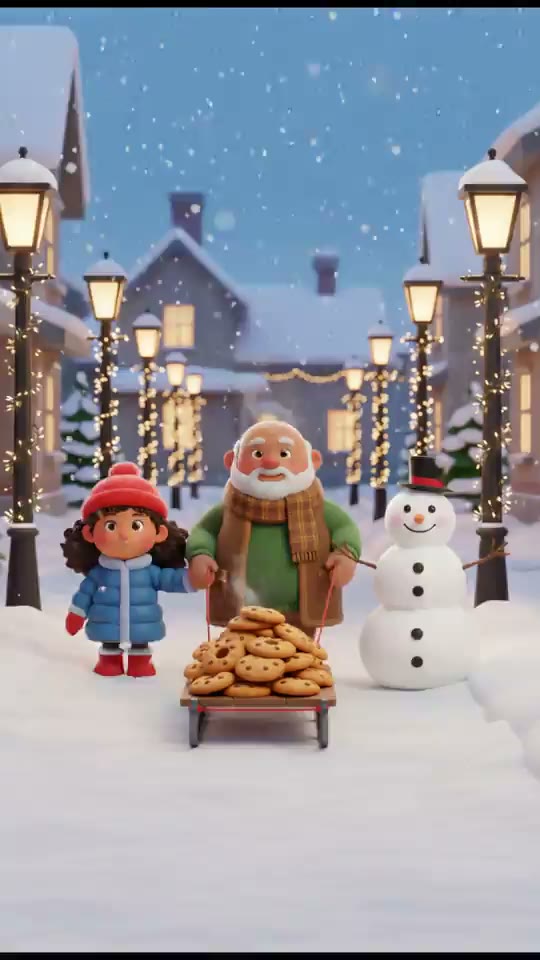
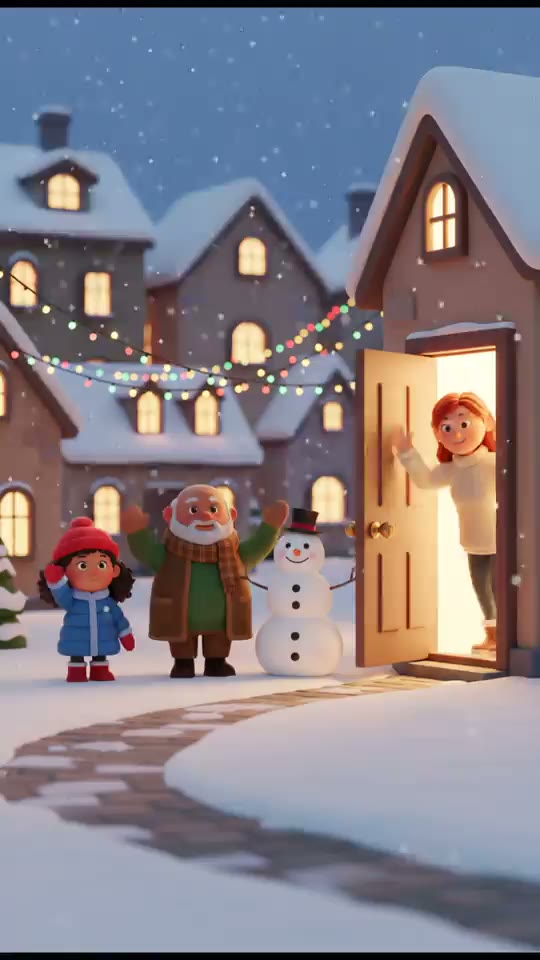
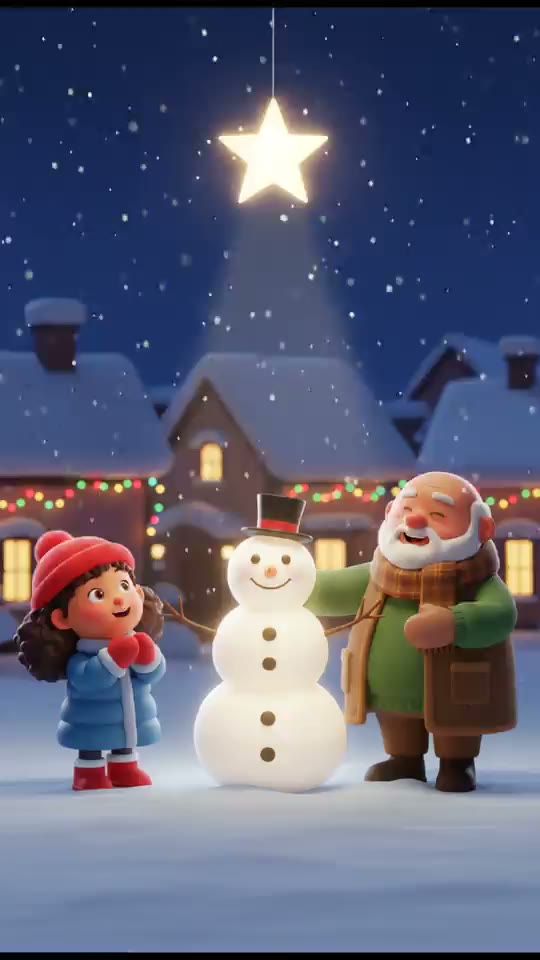
Here is what the generated half looks like. These scenes came from one Christmas run on Treza, with no lettering anywhere in the frame:
Step 1: Describe the scene in chat
Open chat and describe one or two shots. Write for your own business, and end every prompt with what must stay out of the picture. Prompts to copy, with your details in the brackets:
A cosy [bakery / cafe / flower shop] window at dusk in falling snow, warm light inside, [a tray of cookies / steaming cups / wrapped bouquets] on the counter. Slow push-in. No people, no text, no signs, no logos. 8 seconds, vertical.
A quiet street of small shops at night, string lights between the lamp posts, snow drifting down. The camera slides slowly to the right. No readable signs, no text, no logos. 6 seconds, vertical.
A [workbench / salon chair / studio desk] decorated with a small pine branch and fairy lights, soft morning light, a cup of coffee steaming beside it. Very slow push-in. No text, no logos. 6 seconds, square.
Pick vertical for Stories, Reels and a WhatsApp status, square for a feed post or an email, wide for a screen in the shop or a YouTube channel. Look at the first shot before asking for a second; it renders in a few minutes.
Starting from your own premises. If you have a good photo of your shop front or your counter, attach it and ask for the shot to start on it. The video opens on your real photo as its first frame, then adds the motion you ask for: snow beginning to fall, the lights coming on. Signs and lettering in the photo drift once the camera moves, so keep the move small and the sign out of a close-up.
Step 2: Put your logo on, exactly
Attach your logo file in the same conversation and ask for it in a corner:
Put my logo in the bottom right corner of that video, about 15% of the width.
Chat runs the Overlay step over the finished clip. Overlay takes your image as it is, scales it to the width you ask for (4 to 50% of the frame), places it in one of six spots (the top or bottom corners, or centred at the top or bottom), and burns it onto every frame at the opacity you set. Nothing about the logo is redrawn: the pixels in the video are the pixels in your file.
A few things make it look right:
- Use a PNG with a transparent background. Overlay keeps transparency, so the mark sits on the snow instead of in a white box. A JPG keeps its background rectangle.
- Ask for square corners if your logo is not a badge. The default shape rounds the corners, which suits an app icon; ask for "square, as is" for a wordmark.
- Keep it small on a phone. 12 to 15% of the width reads as a signature. Above 25% it starts to look like an ad.
- Mind the bottom of a vertical video. On Reels and TikTok the caption and the buttons sit low and on the right, so a top corner stays clear.
If you only have the logo inside a JPG or a screenshot, ask chat to remove its background first, then overlay the cut-out. And if you do not have a logo file at all, a clean typed name on a plain image is better than a generated one.
Step 3: Add the message, word for word
The greeting itself should be your sentence, not the model's. There are two ways to get it on screen exactly, and they work well together.
As a voice. Write the line and ask for a voiceover. Text to Speech reads exactly what you wrote, in one of 82 voices, and the scene's own sound sits underneath it:
Add a warm voiceover that says: "From all of us at [business], thank you for a wonderful year. Happy holidays, and see you in January."
As captions. Ask for the same line burned in as captions. The Captions step takes your text as written and spreads it across the clip, so it reads on a muted phone, which is how most people will see it first.
Keep the message to one or two short sentences. Fifteen words over eight seconds is comfortable; forty is a wall of text. Opening hours, a discount code or a phone number go in the same way, typed by you, never asked of the picture.
Step 4: End on your logo
A greeting reads better when it closes on the name. Ask for an end card:
Make an end card with my logo centred on a [cream / dark green / your brand hex] background, then join it to the end of the video.
The Canvas step puts your logo on a solid background and holds it for 3 seconds, and the Sequence step joins it after the scene as one video. Again, nothing about the logo is generated.
What goes wrong, and the fix
Words appear in the scene anyway. A shop window or a street invites signs. Add "no text, no signs, no lettering" to the prompt and keep storefronts at a distance. If one slips through, render that shot again rather than covering it.
The logo has a white box around it. The file has no transparency. Ask chat to remove the background from the logo first, then overlay the result.
The logo disappears into the picture. A white logo on snow vanishes. Use your dark version, or put it on the end card, where you pick the background colour.
The voice runs longer than the scene. Cut the message or make the shot longer. A clip already in the conversation can take the voiceover as it is; there is no need to render it again.
People in the scene look generic. They are generated, so they are no one in particular. Keep it that way. A greeting that shows your real team should use a photo or video of your real team, with their agreement, not a generated stand-in.
What it costs
You buy prepaid credits; there is no subscription, and packs start at $5. Chat tells you the price before anything costly starts, and the median video generation on Treza costs $1.06. A greeting is usually one or two shots plus a voiceover.
The logo, the end card and joining the shots do not call a model, so they are not charged. Once the scene is right, a version for New Year, a second location or a different language is a new voiceover and new captions over the same video, not a new video render.
For a narrated, minute-long Christmas story drawn as a cartoon, the AI Christmas video maker is about $0.78 in credits. For a longer seasonal ad that shows your products, the product commercial guide covers starting each shot from your own photos.
When you are ready, open the AI commercial generator, describe the scene, and attach your logo. For everything else Treza makes, start at the AI video generator.
Frequently Asked Questions
Can AI make a holiday video with my company logo?
Yes, if the logo goes on from your file rather than from a prompt. Generate the scene with no logos in it, then attach your logo and ask for it in a corner or on an end card. The Overlay step burns your own image onto every frame, so it is exact.
Will the AI spell my business name correctly?
Not reliably inside the picture: video models draw lettering only approximately. Keep the name out of the generated scene and add it as your logo file, as captions you type, or in the voiceover, all of which use your exact words.
How long should a business holiday greeting video be?
Eight to twenty seconds is plenty: one or two scenes, a sentence of thanks, and a closing card with your logo. Short enough to watch to the end in a chat or a feed.
Can I use a photo of my shop in the video?
Yes. Attach the photo and ask for the shot to start on it. The video opens on your real shop and adds the motion you describe, like snow falling. Keep the move small, since signs and lettering drift as the camera moves.
Can I make versions for Christmas, New Year and other holidays?
Yes. Keep the scene and change the words: a new voiceover line and new captions make the New Year version from the same video. For a different holiday's look, ask for a new scene and add the same logo to it.