How to Remove a Logo from a Video with AI (2026)
A brand on a jacket, a sign in the background, a sticker on a laptop: this guide shows how to take a logo out of your own footage with AI by describing it, how to check that the right thing was found, what moving cameras and overlaps do to the fill, and what to do when part of it is still there.

To remove a logo from a video, upload the clip to Treza's Remove Object tool and describe the logo in plain words, like "the white logo on the front of the jacket". It finds the logo, follows it on every frame, and fills the space with what would be behind it. The sound and the rest of the picture stay as they were.
The rest of this guide is about getting it right the first time: naming the thing so the right pixels go, reading the result, and handling the shots that fight back. It is written for footage you own.

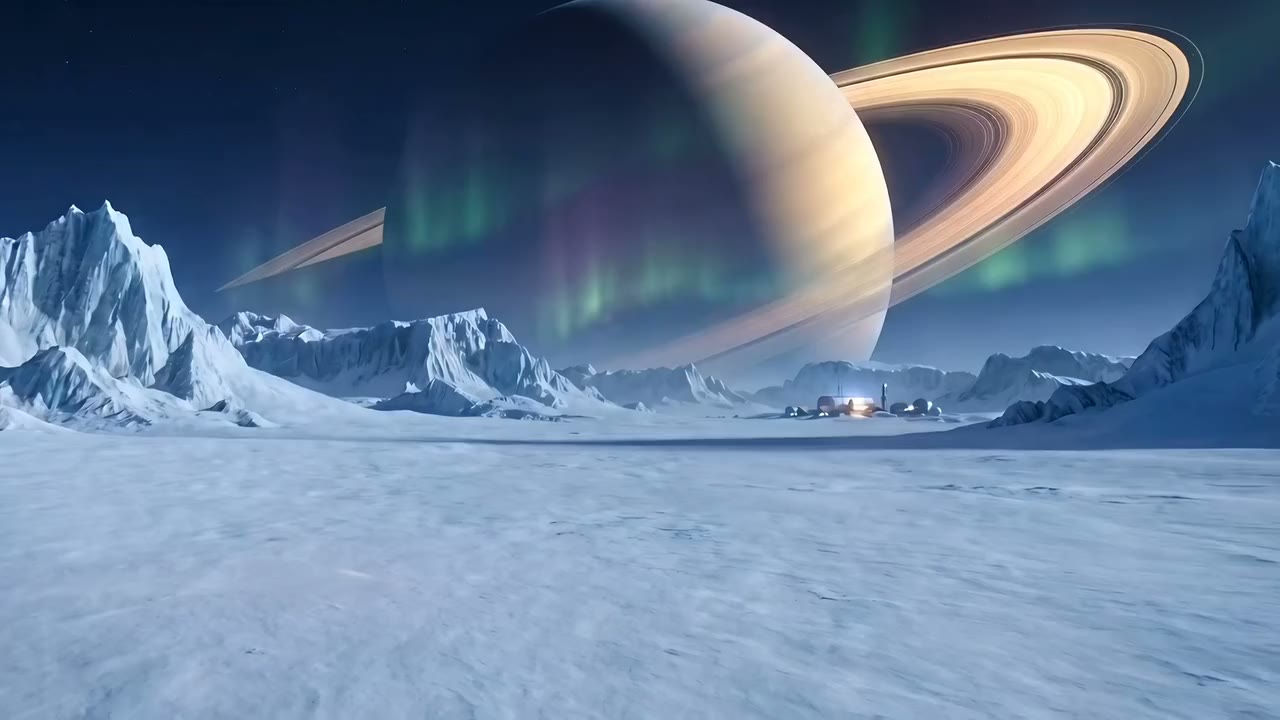
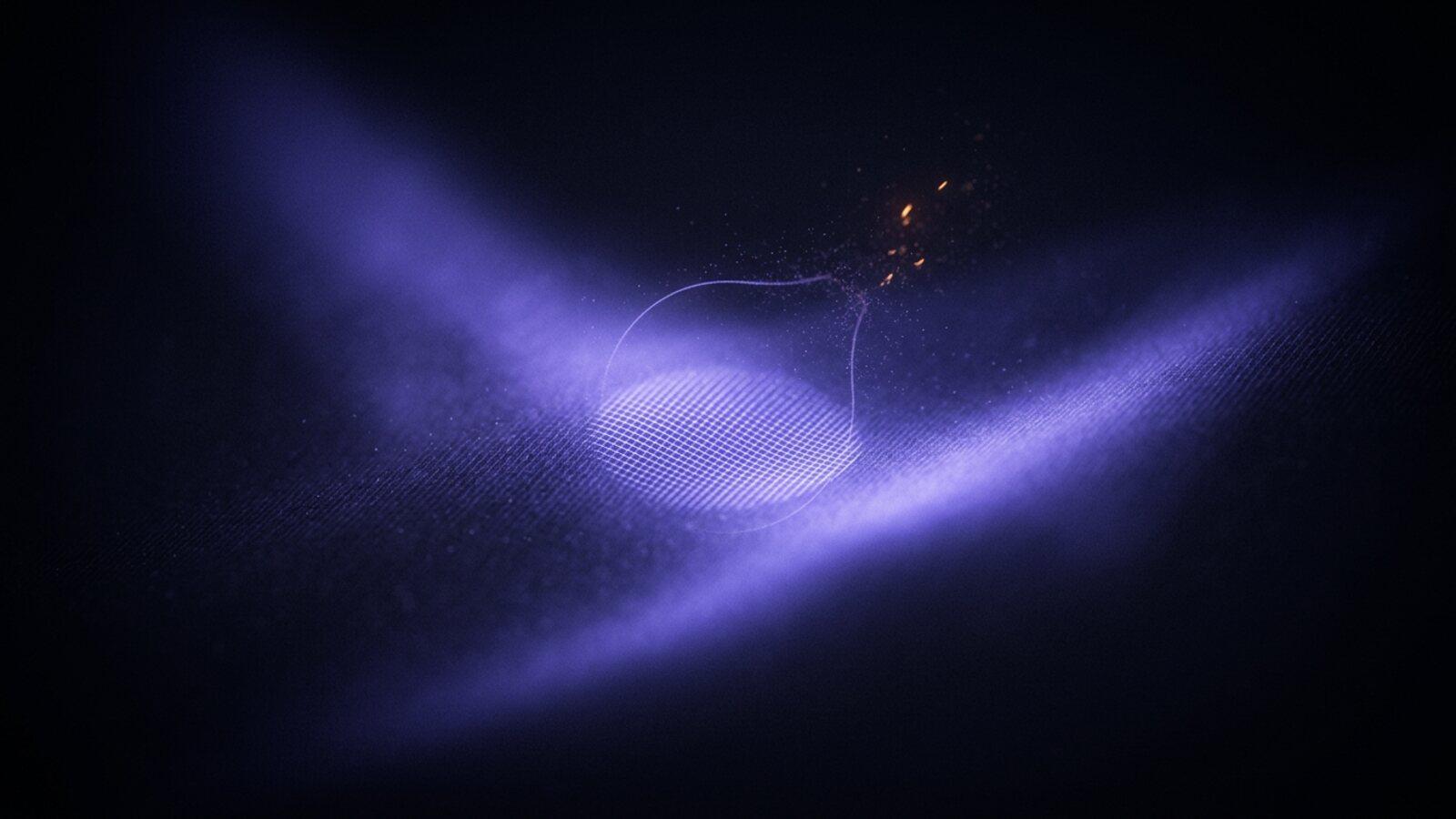
The clip above is one run of Remove Object on a shot where the camera never stops moving. Drag the line across: the cone and its shadow are gone, and the snow behind it moves with the camera.
Why describing beats masking
The old way is a mask drawn and adjusted on every frame, then a hand-painted fill. Remove Object works from words instead. On a frame of each shot it finds whatever you described, then follows it on every frame. It paints one frame clean, and that clean frame fills every other frame, moved the way the camera moves. Only the pixels where the logo was are replaced, and only the stretches where it shows are edited. It never blurs, crops or puts a box over it. When it is done it looks for the logo again and tells you if any of it is still there.
Step 1: Upload the clip and say what goes
Drop the video into Treza chat and ask for the removal in one sentence. A few that work:
- "Take the logo off the front of the black hoodie."
- "Remove the shop sign above the door on the left, with its lettering."
- "Remove the sticker on the laptop lid."
- "Take the brand name off the coffee cup in my hand."
Two rules matter more than anything else.
Name only what should go. Every word in the request is something it looks for. "Remove the logo but keep the zip" makes it look for a zip too. If something near the logo must stay, leave it out of the sentence; everything you do not name is kept anyway.
Describe it the way you would to an editor. Where it is ("on the left sleeve"), what it is on ("the black hoodie"), and what it looks like ("the white circle logo") give it three ways to find the right thing. On the canvas, the Remove Object node also has a Look for field: the object in a word or two, like "logo" or "sign", tried when the full description finds nothing.
Chat shows the price before anything runs. Finding, cleaning and checking cost a few cents, and a run takes a few minutes.
Step 2: Check the first frame before you trust the rest
The run's notes say where the logo was found and which stretches were edited. Before you look at anything else, look at the start of the clip: if the right thing is gone there, it was found, and the tracking carries it from that frame on.
When the wrong thing went, or nothing did, the description was the problem. The usual fixes:
- Too vague. "The logo" on a shot with three logos picks one. Add where it is.
- Too small for words. Small lettering or a mark on a jacket can be hard to find by name. On the pipeline canvas, the node's Area setting lets you draw a box around it on a frame instead. It is followed on from there, so it can move after the frame you drew on.
- A long video. One run works on up to 20 seconds. For a longer clip, set Start and End around the part where the logo shows, or tell chat roughly when it appears.
If you want something other than what would naturally be behind it, say so: "replace it with plain black fabric" or "open sky". Leave it out and the fill is whatever the shot suggests.
Step 3: Know what moving cameras and overlaps do
A locked-off shot of a logo on a wall is the easy case. Two things make it harder, and the result tells you when it happened rather than hiding it.
The camera moves. The fill comes from one clean frame moved with the camera. A pan, a slow push or handheld drift is what that is built for. When the shot moves in a way one clean frame cannot be trusted to cover, the fill is kept and flagged, so you know to look at that stretch. When the camera itself cannot be followed, that stretch is left as it was and the notes say so, instead of being filled with a guess.
Something passes in front. A hand crossing a logo on a shirt, a person walking past a sign. The fill can paint over part of what crossed it, or flicker at the edge where the two meet. The result flags where the fill may look frozen, jump between pieces, or flicker near its edge, so you know which seconds to watch.
A logo on a sleeve that swings in and out of view is worth a closer look every place it comes back.
Step 4: When part of it is still there
The check at the end looks for the logo again on the finished clip. If it says some of it is still there, or you see a sliver the check missed, run Remove Object again on the original video, not on the result, and describe everything that should go in one sentence. For a shot that needs more than one pass, chat has a repair route built from free steps: painting out a leftover piece, or cutting a clean piece of the original from a good frame and pinning it in place over a damaged one. The crane shot on the Remove Object page is the worked example: handheld footage of a Paris building where Remove Object took out three tower cranes and their cables, and free steps on the pipeline canvas finished the rest, including putting the real street lamp back where a crane had passed behind it.
What it is for, and what it is not
Good jobs for it:
- Your own clothing. A brand on a jacket or cap you wore while filming, taken off before the clip goes into an ad or a client video.
- Your own location. A sign behind you, a poster on your wall, a logo on a mug on your desk.
- Your own product shots. A sticker or a supplier's mark on something you are filming for your own listing.
- Generated clips. A stray logo a video model added, removed instead of paying to render the shot again.
What it is not: a watermark remover. Only use it on footage you own or have the rights to edit. Taking a stock site's watermark or another creator's branding off their video breaks their terms, so do not use it for that.
If your goal is to put your own brand on instead, take the old mark off first, then add yours with the Overlay node, the same way the product commercial guide puts a real logo on generated shots.
Doing it on a pipeline
Chat is the quick way: one sentence, one clip. On the pipeline canvas, Remove Object is a node with the same settings (Remove, Look for, Replace with, Area, Start, End), so the removal can sit inside a bigger job, after a video generator step or before a video upscaler. It also takes a mask: wire in the Mask from Video Background Remover and it removes a person instead of finding something by name. The AI video pipeline page explains how nodes chain.
When you are ready, open the Remove Object tool, upload the clip, and say what goes.
Frequently Asked Questions
How do I remove a logo from a video for free?
Treza's Remove Object is not free, but it is cheap: finding, cleaning and checking a logo cost a few cents, and chat shows the price before it runs. Free editors can blur or crop a logo out; Remove Object fills the space with what was behind it instead.
Can AI remove a logo from a moving video?
Yes. The logo is found on one frame and followed on every frame after, and the fill moves with the camera. When the shot moves in a way the fill cannot be trusted to cover, it is flagged, and when the camera cannot be followed at all, that stretch is left untouched and the notes say so.
How do I remove a logo from clothing in a video?
Describe it by where it is and what it is on, like "the white logo on the chest of the grey t-shirt". If the logo is small and words do not find it, draw a box around it on one frame using the node's Area setting on the pipeline canvas, and it is followed from there.
Will removing a logo change the sound or the rest of the video?
No. Only the pixels where the logo was are replaced, and only during the stretches where it shows. The soundtrack and everything else in the frame stay the source's own, and the video comes back the same length.
How long a video can I remove a logo from?
Any length, but one run edits up to 20 seconds. For a longer video, set the start and end around the part where the logo appears, or run it once per stretch.
What if the logo is still partly visible afterwards?
The check at the end says where. Run the removal again on the original video, not the edited one, and describe everything that should go in one sentence.